Settings
Automatic actions, real-time protection, scan schedule, CPU limit, exclusions, notifications and license of Pyxsoft Antimalware.
The Settings tab gathers everything that changes how Pyxsoft Antimalware behaves. Changes are not applied until you click Save changes at the bottom; Discard drops them. The bar shows how many unsaved changes there are.
| Section | Where it is explained |
|---|---|
| Automatic actions | Below |
| Real-time protection | Real-Time Protection |
| Scheduled scan | Scans |
| Performance | Scans → CPU limit |
| Exclusions | Below |
| Allowlist | Quarantine and Allowlist |
| Notifications | Below |
| License | License |
Automatic actions
What the scanner does when it finds something, in real time and in scans.
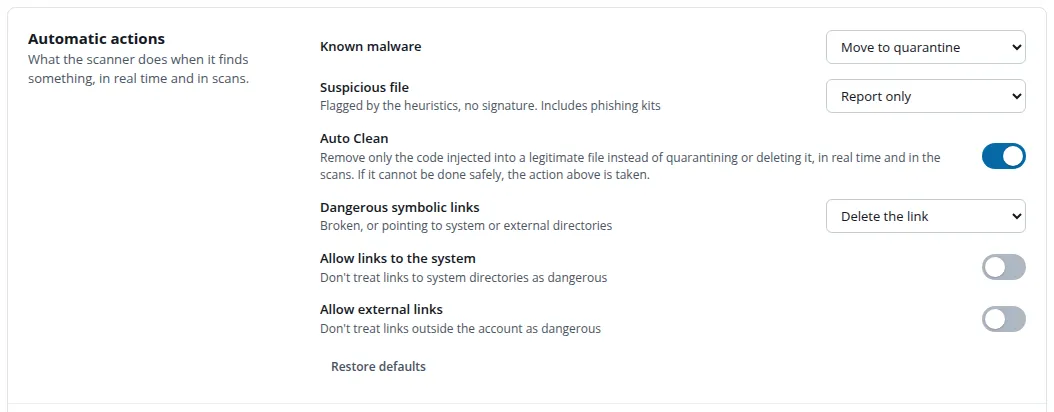
| Setting | Options | Default |
|---|---|---|
| Known malware | Move to quarantine, Report only, Delete, Allow (no action) | Move to quarantine |
| Suspicious file — flagged by the heuristics, no signature; includes phishing kits | Report only, Move to quarantine, Delete, Allow (no action) | Report only |
| Auto Clean — remove only injected code instead of the action above | On / off | See Auto Clean |
| Dangerous symbolic links — broken, or pointing to system or external directories | Delete the link, Report only, Ignore | Delete the link |
| Allow links to the system | Don’t treat links to system directories as dangerous | Off |
| Allow external links | Don’t treat links outside the account as dangerous | Off |
Report only leaves the file where it is and lists it as unresolved in Detections. Allow (no action) records the detection without listing it as unresolved. Delete cannot be undone; quarantine is the safer choice because a quarantined file can be restored. Suspicious files are reported by default because heuristics can flag legitimate code.
Restore defaults puts every automatic action back to its default.
Exclusions
Paths, names or accounts that are never scanned, besides the fixed cPanel ones (mail, logs, tmp…).

| Kind | Example | Notes |
|---|---|---|
| Path | /home/account/public_html/cache |
A directory excludes everything inside it. Must start with /. |
| Name or pattern | *.mp4, node_modules |
* and ? match any file or directory name, anywhere. No /. |
| Account | account |
The account is skipped by the full scan; scanning it by hand still scans it. |
Exclude only what you trust: malware is often hidden in cache and upload directories. To stop a single false positive, mark the file as safe instead — the allowlist only skips that exact content.
Notifications
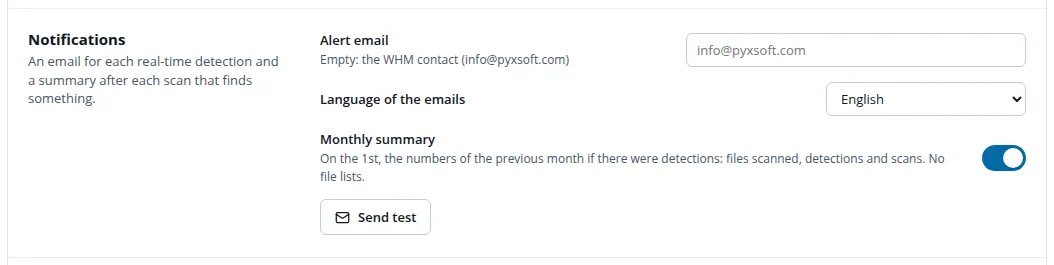
Pyxsoft Antimalware sends:
- An email for each real-time detection.
- A summary after each scan that finds something.
- An email when Pyxsoft Labs confirms as malware a file that was only suspicious.
- An email when the license stops being valid (see License).
- Optionally, a monthly summary on the 1st, if the previous month had detections: files scanned, detections and scans, with no file lists.
Alert email is a single address, without a name (admin@example.com). Leave it empty to use the WHM contact email. Language of the emails can be English or Spanish. Send test sends a test email to check the address works.
Emails are handed to the server’s own mail server on 127.0.0.1:25: Exim on cPanel. On a server without a panel they are sent by the Pyxsoft license server from alerts@pyxsoft.com, to an address verified from a link, or by the server’s own mail server if you choose it: see Command line. The emails have no links to the server: they say where to review each alert and name the server.
This page is also available as markdown.