Command Line
Managing Pyxsoft Antimalware from the shell with the pyxsoft command: status, detections, scans, locations, exclusions, quarantine, allowlist, license and email alerts. The way to manage a server without a control panel.
The pyxsoft command manages Pyxsoft Antimalware from the shell. It comes with the package, so every server has it, with or without a control panel. On a server without cPanel it is how you manage the service, and it is what the email alerts of those servers tell you to run.
It must run as root. It talks to the service running on the same server, so the service must be running (systemctl start pyxsoft).
Full screen interface
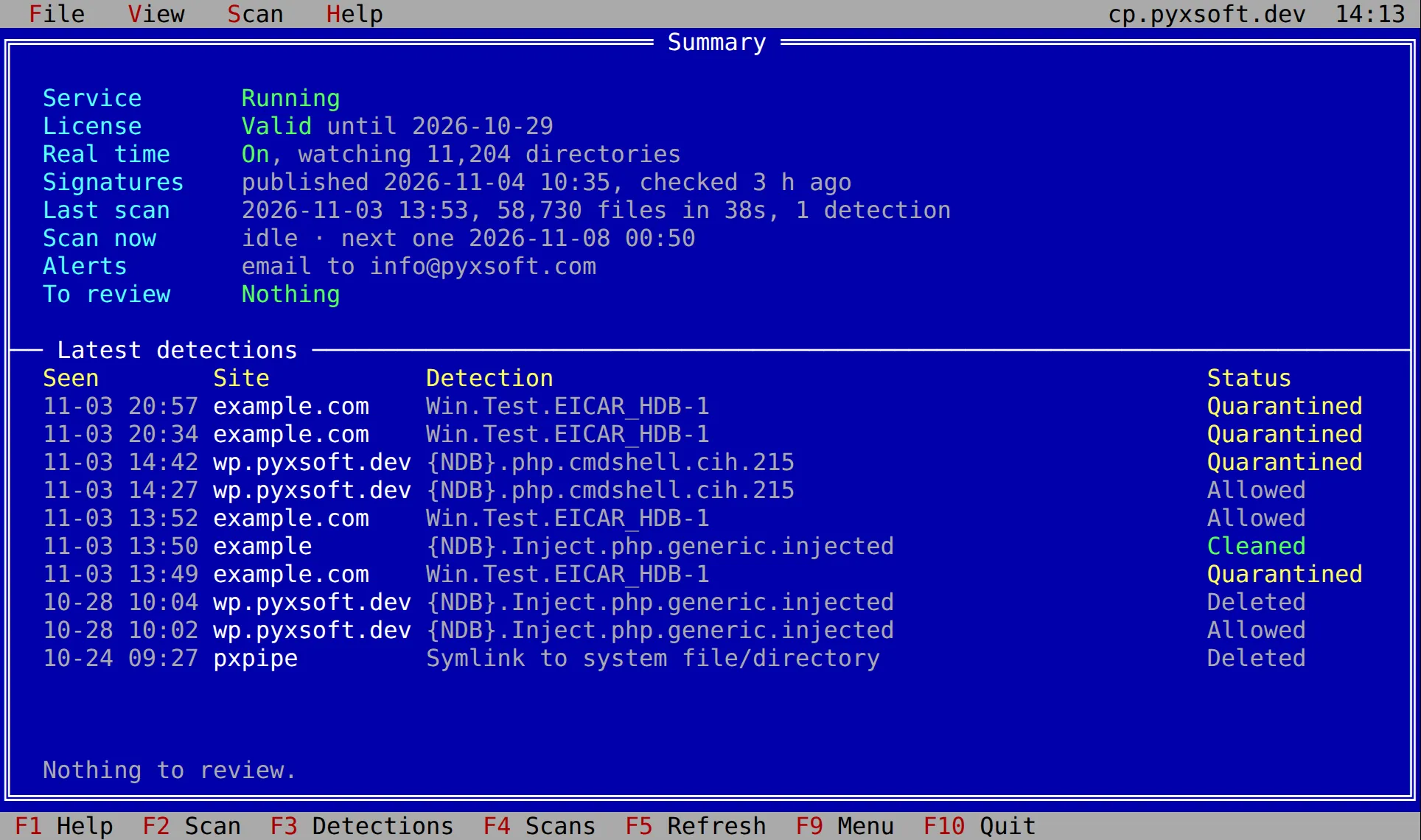
pyxsoft without a command opens a full screen interface in the terminal, with a menu bar at the top and the function keys of each screen at the bottom. Alt+1 to Alt+7, or the View menu, switch between its screens:
- Summary shows the state of the protection, the scan in progress and the latest detections, and refreshes itself every few seconds.
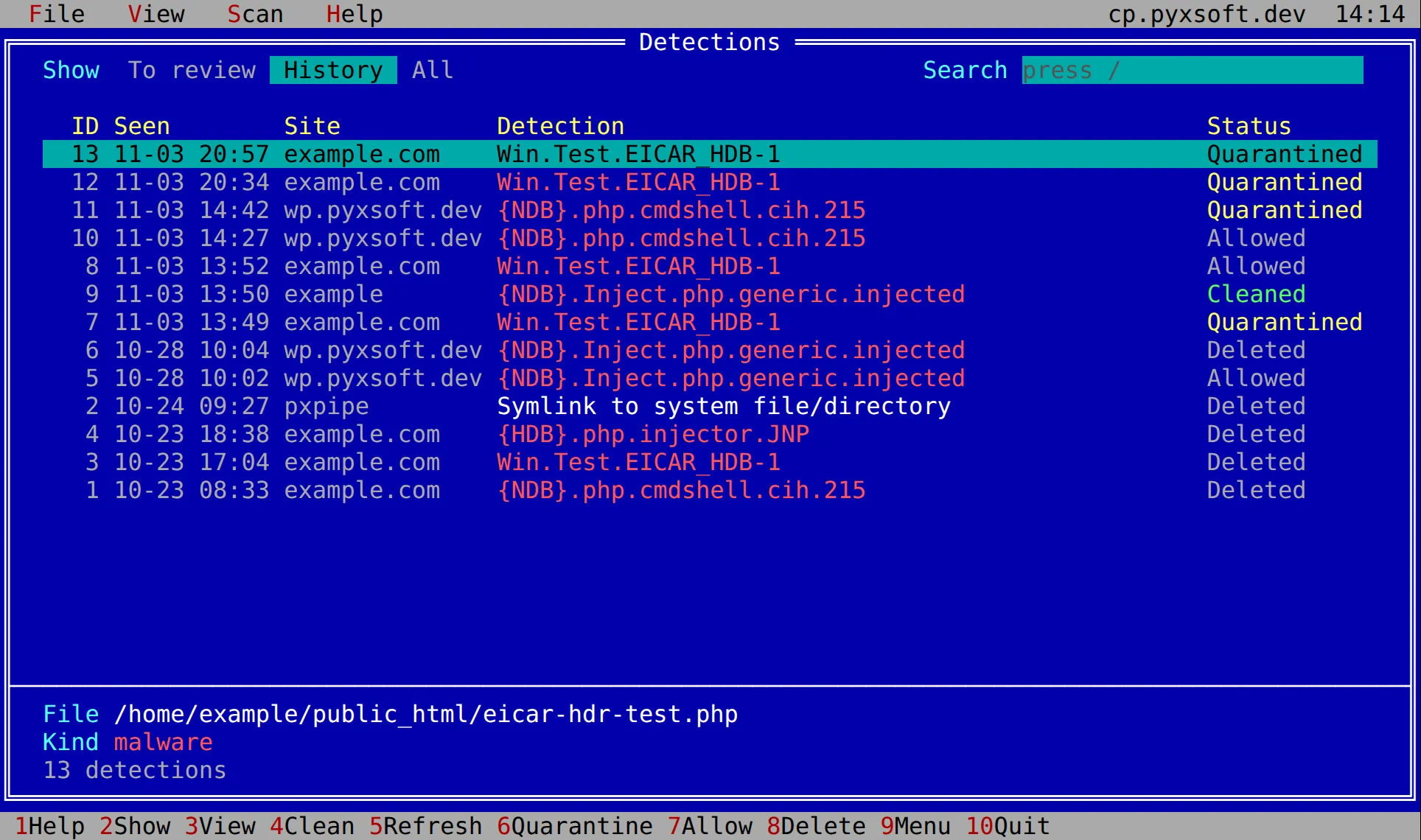
- Detections lists the detections to review, the ones already dealt with, or all of them. It opens each one with the start of its file, and acts on one or on several at once.
- Scans shows the progress of the scan of the server and of the sites, the last scans, and the sites to scan some of them.
Enteron a scan or a site lists its detections;Esclists all of them again. - Locations shows the directories with websites and who declares them, as
pyxsoft locationsdoes, and the exclusions.F6excludes the directory under the bar or includes it again,F7adds a directory (on a server without a panel) or an exclusion, andF8removes one. - Quarantine and allowlist shows the quarantined files and the allowed ones (
F2switches).Enteropens a quarantined file with the start of its content;F6restores it, which puts it back and allows it, andF8deletes the quarantined copy. In the allowlist, the last column says if the file is still the one that was allowed, andF8takes it off the list so that it is scanned again; the file is not touched. - Settings shows the automatic actions, the scheduled scan and its CPU limit, the real-time scanner, the samples and statistics sent to Pyxsoft Labs, and the alert emails.
Enter,F4or a double click changes the setting under the bar: an on/off one switches at once (turning the real-time scanner off asks first), the others open a small dialog. Each change is saved right away, likepyxsoft config.F7sends a test alert email. - License shows the license, its holder, expiry date and code, as
pyxsoft licensedoes, andF4sets a new license code.
While the server has no valid license, the interface opens on an activation box instead, like the license page of the panel: type the license code and press Enter, or start the 7-day free trial if the server can still use one (the button, or F6, which asks first). The other screens do not open until the license is valid, because the protection is paused without one; then the Summary opens on its own.
| Key | What it does |
|---|---|
F2 |
Summary: starts a scan of the server, or stops the one in progress (it asks first). Detections: shows the ones to review, the history or all. Quarantine: shows the quarantine or the allowlist |
F3 |
Summary: opens Detections. Detections: opens the detection under the bar, as Enter does. Scans: shows the last scans or the sites |
F4 |
Summary: opens Scans. Scans: scans the marked sites, or the one under the bar |
Space or Insert |
Marks a detection, a site or a file; + marks all of them, - none |
/ |
Searches part of the path, of the name or a sha256 (in the quarantine and the allowlist, part of the path) |
F4 F6 F7 F8 |
Detections: clean, quarantine, allow or delete the marked detections, or the one under the bar. They always ask first, and clean shows the code it will remove |
F5 |
Refreshes now |
F9, or Alt and the first letter of a menu |
Opens the menu bar. The arrows move through the menus, Enter runs an item, Esc closes |
F6 F8 |
Quarantine: restore or delete the marked files, or the one under the bar. Allowlist: F8 removes them from the list. They always ask first |
Esc |
Closes a menu, a dialog, a detection or a quarantined file |
F10 or q |
Quits |
An action only takes the detections it applies to, as pyxsoft findings does: quarantine and clean, the ones to review; delete, also the quarantined ones; allow, also the quarantined and cleaned ones, which go back to how they were.
Some terminals keep function keys for themselves (F1 and F10 in GNOME Terminal, and on macOS they need fn). Every function key also works with its digit: 1 to 9 for F1 to F9, and 0 for F10; when the keys of a screen do not fit, the bar at the bottom shows them that way (6Quarantine). The mouse works too: a click on a menu, a key at the bottom, a button or a tab runs it; in a list, a click selects, a double click opens and a right click marks; on the Summary, a click on a line or on a detection opens its screen. To select text with the mouse, hold Shift.
The interface draws its frames with line characters even when the locale of the server is C, as on a minimal VPS. If your terminal shows them wrong there, run it with PYXSOFT_ASCII=1 pyxsoft to draw them with plain ASCII. Without a terminal (from cron or a pipe), pyxsoft without a command prints the usage instead.
Status
pyxsoft statusPyxsoft Antimalware on server1.example.com
License valid, until 2027-01-01
Real time on, watching 1,284 directories
Signatures published 2026-11-03 08:00, checked 30 min ago
Last scan 2026-11-02 01:00, 184,220 files in 3m 12s, 0 detections
Next scan 2026-11-09 00:50
Alerts email to admin@example.com
Open no detections to reviewIt exits with code 3 when something needs attention: detections to review, a license that is not valid, the real-time scanner off or not watching every directory, a failed signature update, or alerts that cannot be sent. This makes it easy to monitor from cron or a monitoring system.
Detections
pyxsoft findings                    # detections to review
pyxsoft findings --history          # the ones already dealt with
pyxsoft findings --all --kind malware --account example.com
pyxsoft findings show 12            # one detection and the start of its file
Act on one or more detections by their id:
pyxsoft findings quarantine 12 13
pyxsoft findings clean 12           # remove injected code, see Auto Clean
pyxsoft findings allow 12           # a false positive: allowed, and restored if quarantined
pyxsoft findings delete 12
clean shows the code it is going to remove first. delete, allow and clean ask for confirmation; add --yes to run them from a script. These actions work like the ones in Detections, and so does allow with Auto Clean: the original of a cleaned file is written back.
Scans
pyxsoft scan                        # the whole server
pyxsoft scan --account example.com  # one or more accounts
pyxsoft scan --wait                 # show the progress until it ends
pyxsoft scan status
pyxsoft scan stop
pyxsoft scan history
On a server without a panel, each website the web server declares is an account. The schedule of the full scan is in Full Server Scan.
Locations
pyxsoft locationsDIRECTORY FROM KIND ACCOUNT DOMAINS STATE
/opt/myapp manual extra scanned
/var/www/example.com nginx,apache root example.com example.com scanned
/var/www/html nginx root html scanned
/var/www/old.example apache root old.example old.example not scanned: does not exist
3 directories scanned, 1 declared but not scanned.It lists every directory with websites and who declares it, so you can check that every site is covered. On a server without a panel these are the document roots and aliases that nginx, Apache, Caddy and OpenLiteSpeed declare, plus the directories you add. A directory inside another one is covered by it. --all also lists what is left out on purpose, such as the icons the Apache package publishes.
When an application has its code outside the document root, for example behind a reverse proxy, add its directory:
pyxsoft locations add /opt/myapp
pyxsoft locations remove /opt/myapp
The real-time scanner watches an added directory right away, and the next full scan includes it. System directories such as /etc cannot be added. A removed directory stops being scanned at once and stops being watched in real time when the service restarts. The list is kept in ExtraScanDirs of /etc/pyxsoft-am/pyxsoft.ini.
Exclusions
pyxsoft exclusions
pyxsoft exclusions add path /var/www/example.com/cache
pyxsoft exclusions add pattern '*.log'
pyxsoft exclusions add account example.com
pyxsoft exclusions remove pattern '*.log'
They work as in Settings: a path excludes everything inside it, a pattern matches names with * and ?, and an account is a whole website.
Quarantine and allowlist
pyxsoft quarantine
pyxsoft quarantine restore /var/www/example.com/x.php
pyxsoft quarantine delete /var/www/example.com/x.php
pyxsoft allowlist
pyxsoft allowlist remove /var/www/example.com/x.php
Restoring a file also allows it, as in Quarantine. Removing a file from the allowlist does not touch it: it is scanned again from then on.
License
pyxsoft license
pyxsoft license set <code>
pyxsoft license trial
See License for what happens when the license is not valid.
Email alerts and settings
pyxsoft config                          # the current settings
pyxsoft config email admin@example.com
pyxsoft config test-email
pyxsoft config language es
pyxsoft config realtime on
pyxsoft config monthly-report off
pyxsoft config samples off
A server without a panel has no contact email to fall back on, so set an address, or no alerts are sent.
How the alerts are delivered
A small VPS often has no mail server, or one whose mail ends up in spam. So on a server without a panel, the alerts are sent by the Pyxsoft license server, from alerts@pyxsoft.com:
pyxsoft config email admin@example.comsends a verification email to that address.- Open its link and click Confirm. Until then no alert is sent, and
pyxsoft statussays the address is waiting for verification. To get a new link, set the same address again. - Check it with
pyxsoft config test-email.
Good to know:
- The alerts include the paths and domains of the findings, and they pass through the Pyxsoft license server to reach you. Nothing else from the server is sent.
- Alerts only go to the verified address. If you change the address, they keep going to the old one until the new one is confirmed.
- Every alert has an unsubscribe link. After unsubscribing, set the address again to receive them again.
- At most 100 alerts a day per server.
- If the license server cannot be reached, the alerts wait on the server for up to 3 days and go out when it answers. They also go out when the license has stopped being valid, so you hear about it.
To use the mail server of this server instead, set Delivery = local in the [Mail] section of /etc/pyxsoft-am/pyxsoft.ini and restart the service (systemctl restart pyxsoft). Then the alerts are handed to port 25, or to sendmail when nothing listens there; if there is neither, status and config say so.
Scripts
Add --json before the command to get the answer of the service as JSON, for scripts and monitoring:
pyxsoft --json findings | jq '.data[].Path'Exit codes: 0 success, 1 error, 2 wrong usage, 3 (status) something needs attention. pyxsoft --help, and --help after any command, list every option.
This page is also available as markdown.