Quarantine and Allowlist
Quarantine
Files moved to quarantine — automatically or by you — are stored encrypted outside the accounts, where they cannot run or be reached from the web. The Quarantine tab lists them with the original path, the detection, when they were quarantined and by whom: the real-time scanner, a scan, or the administrator.
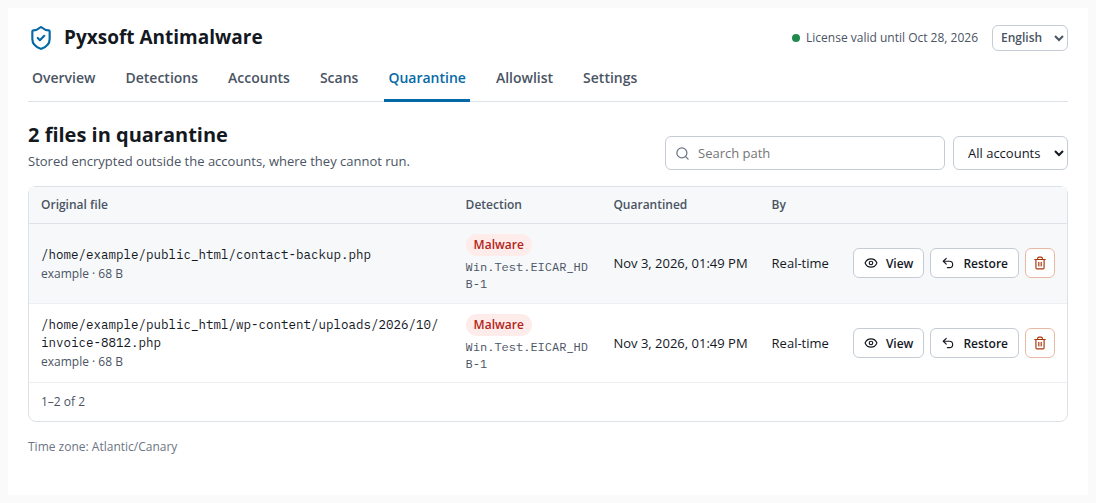
- View shows the content of the quarantined copy.
- Restore puts the file back in its original place and adds it to the allowlist.
- The bin button deletes it from the quarantine permanently.
Search by path or filter by account to find a file.
Restoring a false positive
Restore a file only when you have checked it is a false positive: if it really is malware, it will be active again in the account. The dialog asks you to confirm it.
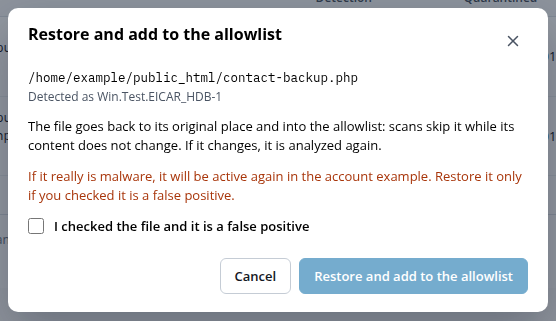
A restored file goes into the allowlist, so it is not quarantined again — unless its content changes.
Allowlist
The allowlist holds the files the scanner skips: those restored from quarantine and those marked as safe in Detections. Each entry is tied to the content of the file (its SHA-256), not just to its path: if the file changes, it is analyzed again. That way an allowed file cannot be reused to hide malware.
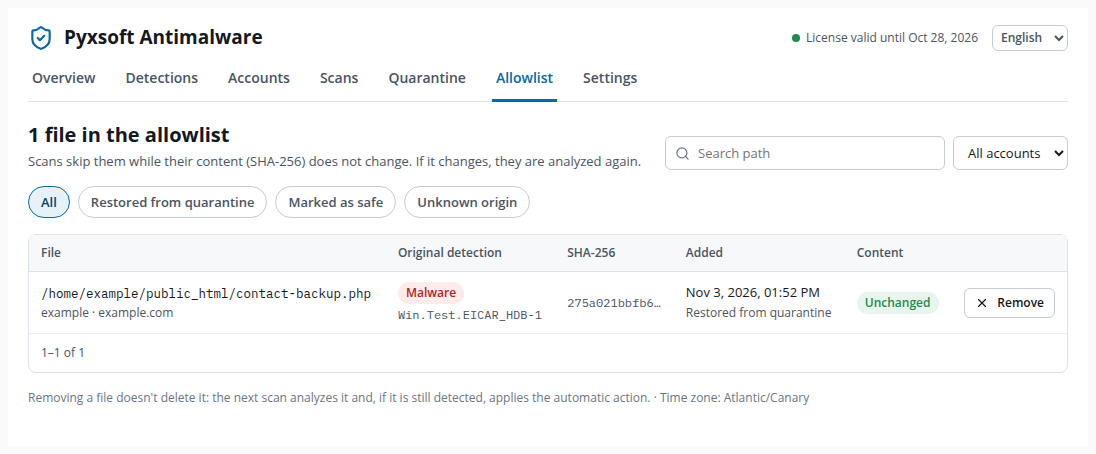
The Content column shows whether the file is still the one you allowed:
- Unchanged — scans skip it.
- Changed — modified since it was allowed: scans analyze it again.
- Not on disk — the file no longer exists.
Remove takes a file off the allowlist without deleting it: the next scan analyzes it and, if it is still detected, applies the automatic action. Filter by origin (restored from quarantine, marked as safe) or by account, or search by path.
The allowlist can also be reached from Settings → Allowlist → Manage allowlist.