Detections
The Detections tab lists every file the real-time scanner or a scan found, and is where you resolve them.
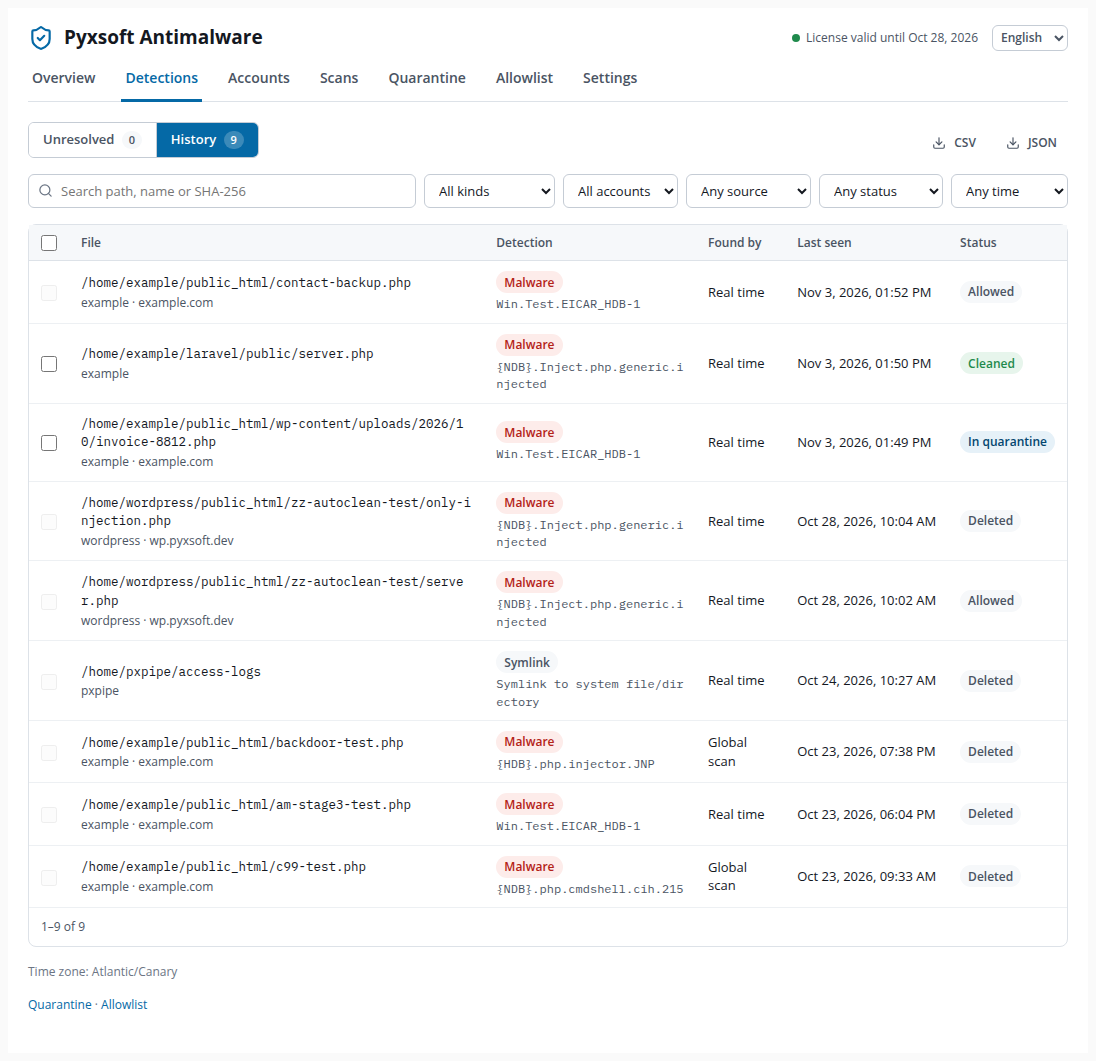
Unresolved and History
- Unresolved shows the detections that still need a decision: files that are still on disk, such as suspicious files under the default Report only action, or malware the automatic action could not handle. The number on the tab is the same one the Overview shows.
- History shows every detection, whatever happened to it.
Each detection has a status: Unresolved, In quarantine, Deleted, Allowed, Cleaned or Resolved (the file disappeared or no longer contains malware).
Filters and export
Search by path, file name or SHA-256, and filter by:
- Kind: malware, suspicious, phishing kit, symbolic link, or Heuristics only (files with no signature).
- Account.
- Found by: real time, global scan, account scan, or re-evaluation after a signature update.
- Status (in History) and Period.
The filters are part of the page address, so you can bookmark a filtered view. CSV and JSON export the detections that match the current filters.
Detection detail
Click a file to open its detail.
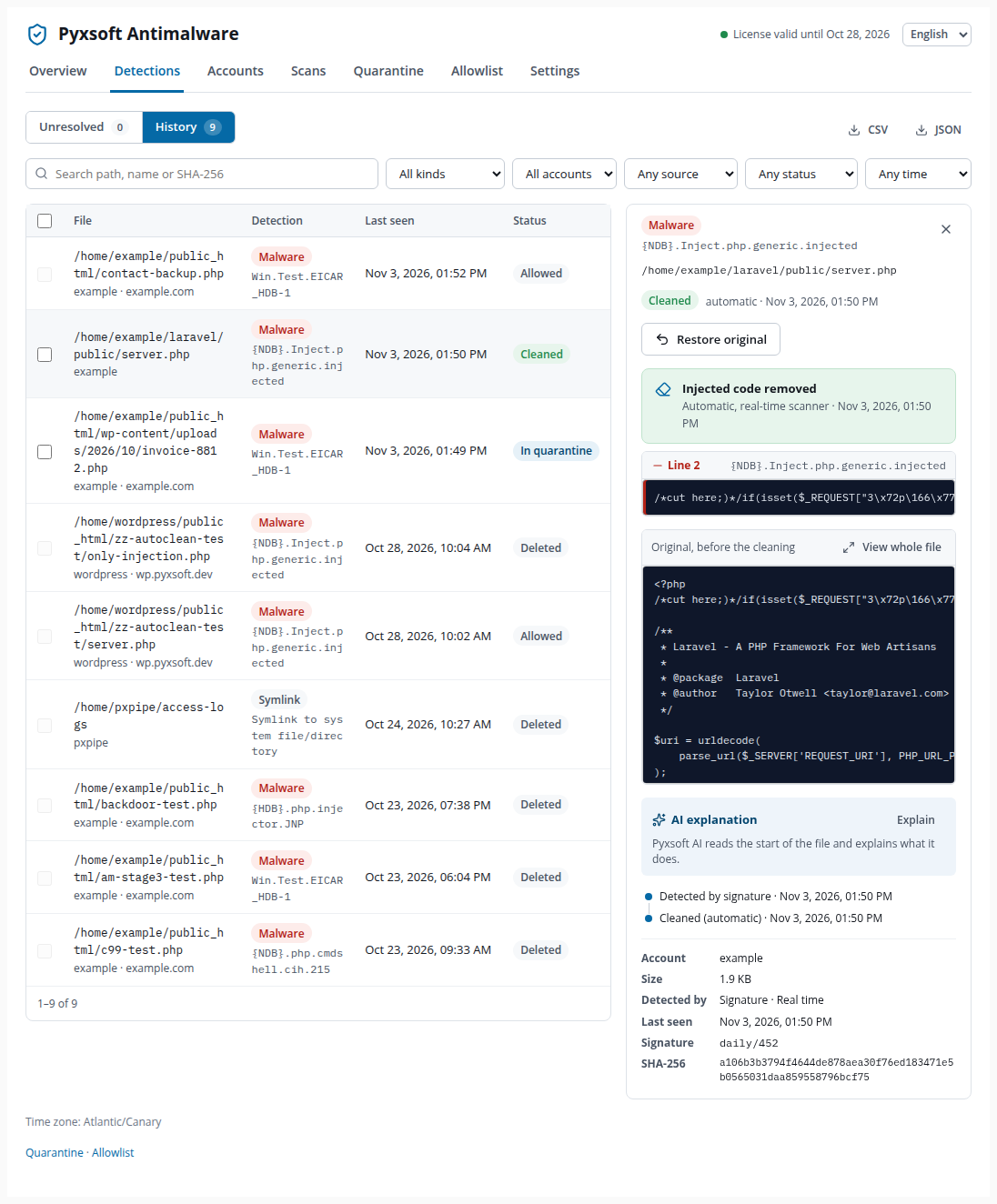
The detail shows:
- What was found and by which engine: a signature, the Pyxsoft heuristics (no signature, review it: it may be legitimate code), or a high precision rule of the heuristics — rules with no false positives on clean software, acted on as malware.
- The content of the file, or the copy kept in quarantine. View whole file opens it in full, with the reasons it was flagged.
- AI explanation. Click Explain and Pyxsoft AI reads the start of the file and explains in plain words what it does. Useful to decide on a suspicious file.
- History of the detection: when it was found, if a sample was sent to Pyxsoft Labs, if a Labs signature later confirmed it as malware, and every action taken, automatically or by the administrator.
- Account, domain, size, signature and SHA-256.
If the file changed since it was detected, actions don't touch it: the real-time scanner or the next scan analyzes the new content.
Phishing kits
For a phishing kit, the detail shows the directory where the kit was installed and its files, with how sure the location is:
- High confidence — the archive of the kit is next to it.
- Found from the pages of the kit.
- Only the directory of the script that steals the data.
Files of the kit mixed with the files of the site are listed separately, so you don't remove site files by mistake.
Resolving detections
Act on one file from its detail, or on several at once by selecting them in the table:
| Action | What it does |
|---|---|
| Quarantine | Moves the file to the quarantine, encrypted and outside the account. It can be restored later. |
| Clean | For code injected into a legitimate file: removes only that code. Shown as Can be cleaned. See Auto Clean. |
| Mark as safe | For false positives: adds the file to the allowlist. If it is in quarantine, it goes back to its place. You must confirm you reviewed the file. |
| Delete | Deletes the file from disk, or from the quarantine. This cannot be undone. |
After a batch action, a message gives the result for every file: done, not touched because the file changed, already gone, or failed.
Suspicious files and Pyxsoft Labs
Suspicious files are reported by default, not quarantined, because heuristics can flag legitimate code. If sending samples is on, a suspicious file is sent to Pyxsoft Labs for analysis. After every signature update (every 6 hours), suspicious files are re-evaluated: if Labs published a signature for one, it becomes malware, gets the malware action, and you receive an email.